Tulai in an Arrival
Digital Bahi records Tulai (तुलाई / Weighment) directly on each Arrival crop item rather than in a separate menu. Once an arrival item's auction and Tulai details are recorded, it moves to the Completed tab in Daily Work > Arrivals & Weighment for billing.
Before you start
- An Arrival record must already exist for the farmer and commodity (or you can enter Tulai simultaneously when creating the arrival).
- Keep the physical weighing slip (Actual Bags, Weight/Bag, and any Loose Weight) ready.
How to record Tulai
- Open Daily Work > Arrivals & Weighment (
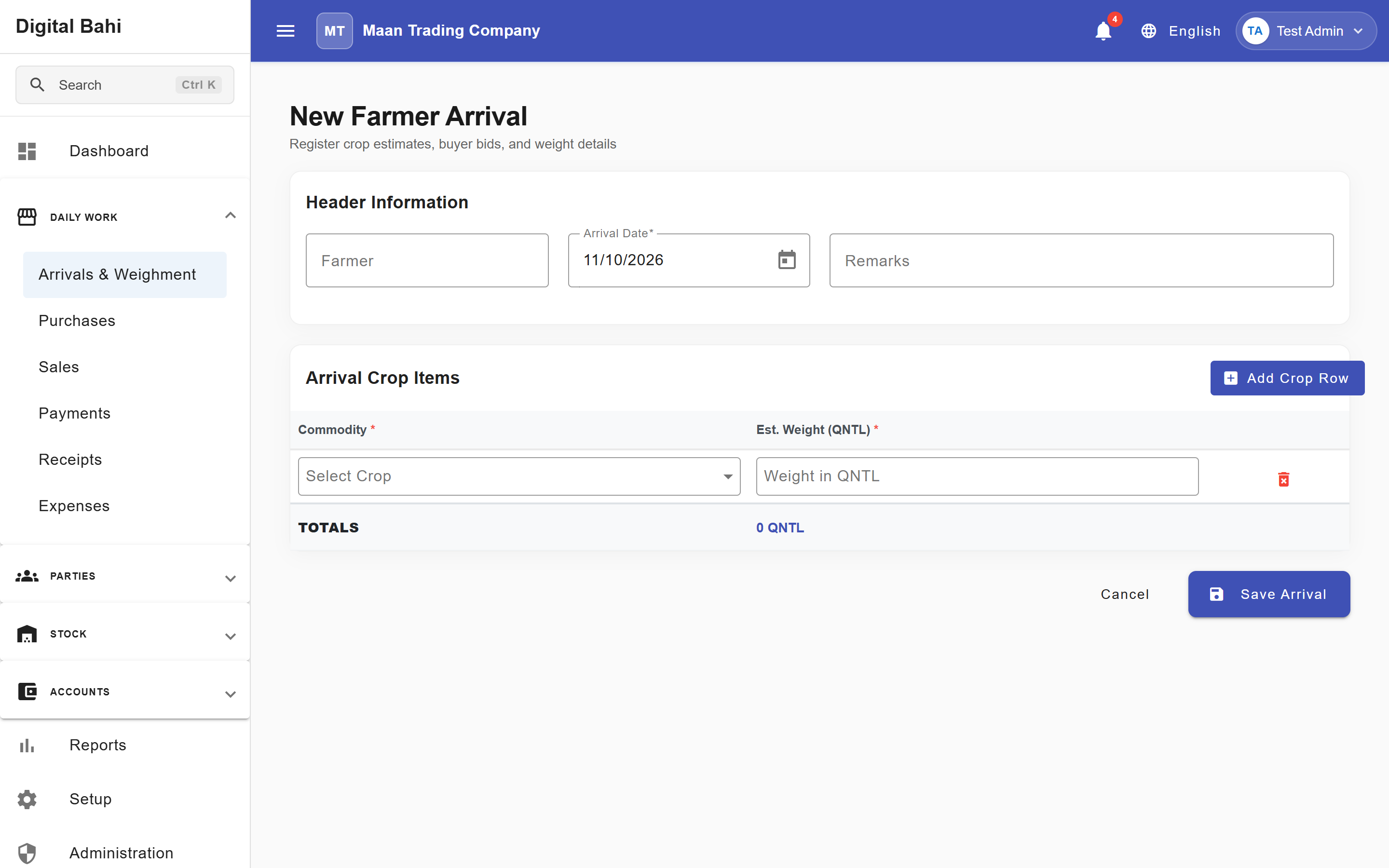
/transactions/arrival-queues) and switch to the Weighing tab (or open All Arrivals at/transactions/arrivaland click Edit on the arrival record). - On the commodity line item inside Arrival Crop Items, scroll right to the Tulai columns and enter:
- Actual Bags
- Weight/Bag (in kg)
- Loose Weight (optional, in kg)
- Tulai Date
- Review the automatically calculated Actual Weight (in quintals,
Qtl) and click Create Arrival / Save.
Weight Calculation & Validation Rules
Digital Bahi calculates the Actual Weight in quintals (Qtl) using the formula:
Actual Weight (Qtl) = ((Actual Bags × Weight/Bag) + Loose Weight) ÷ 100
- Loose Weight Rule: Loose weight must be strictly less than the Weight/Bag (if loose weight equals or exceeds a full bag's weight, increase Actual Bags instead).
- Non-Negative Values: Bags and weights cannot be negative.
- No Accounting Entry at Tulai: Recording Tulai updates the item's physical net weight and stage to Completed, but does not create an accounting voucher or stock lot. Any Tulai labor charge (mapped to
SYS-LIAB-TULAI) is calculated and posted when the downstream Purchase or Sale bill is saved.
Selecting Weighed Items in Purchase & Sale
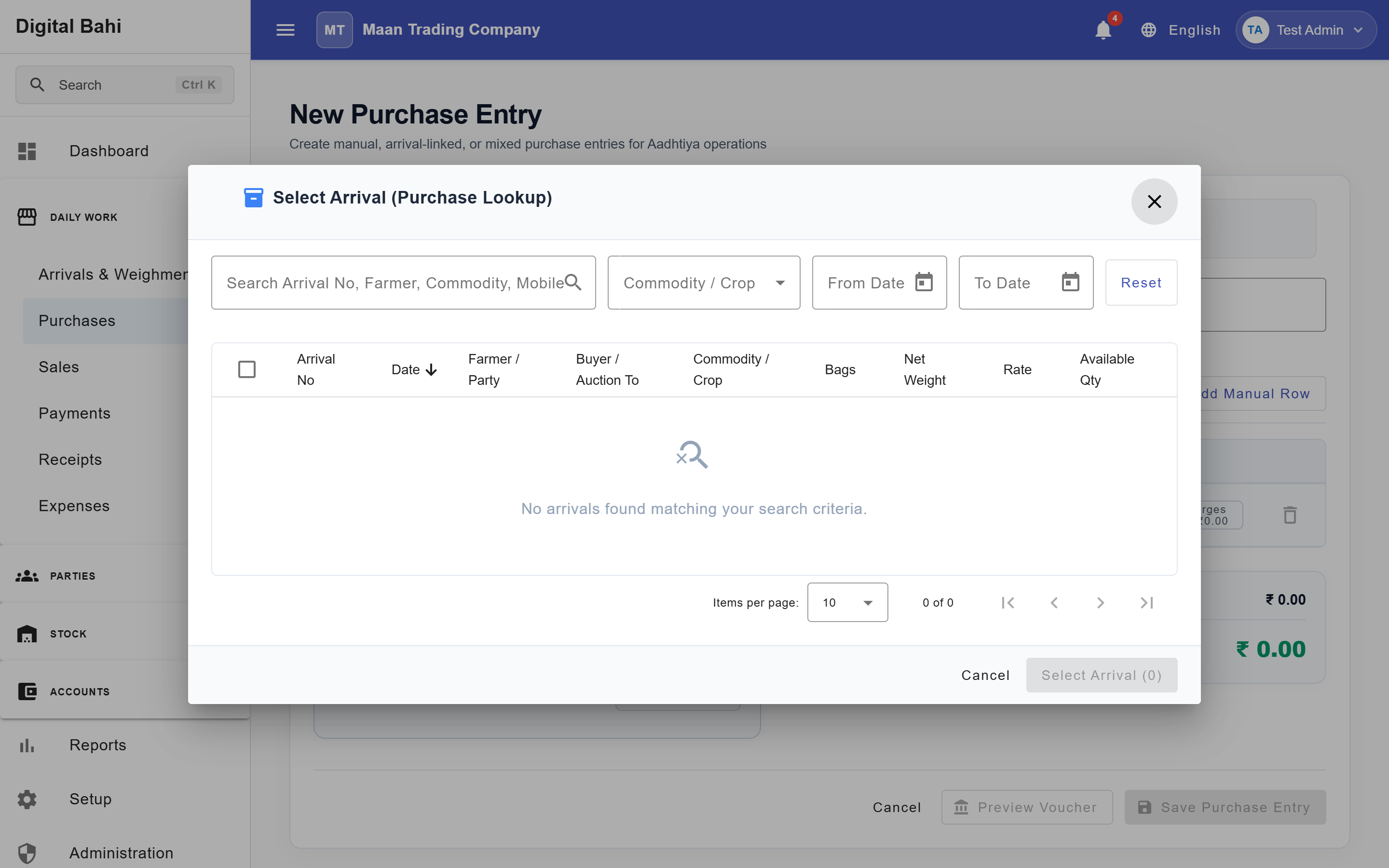
When creating an Arrival-Linked Purchase or Sale, clicking Fetch Arrival Items opens the Select Arrival lookup dialog:
- You can select multiple weighed arrival items in a single bill using the table checkboxes and click Use Selected Items.
- On a Sale, multi-selection automatically restricts your selection to arrival items auctioned to the same Buyer so a single buyer invoice never mixes multiple buyers.