Payment
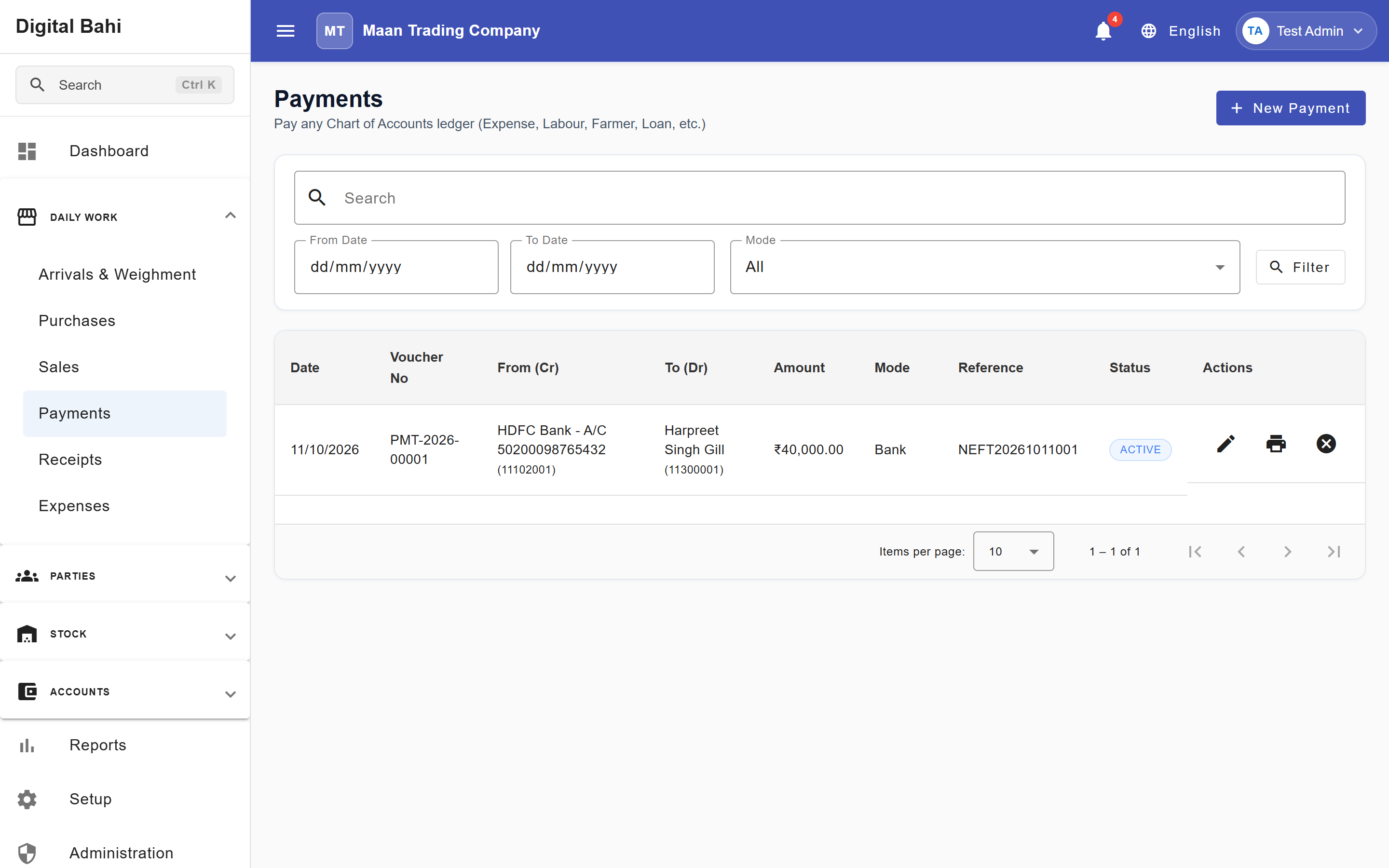
The Payment module records the outflow of money from your business to settle farmer payables, pay suppliers, issue advances, or clear accrued liability accounts (such as Tulai or Dhanka labor payables).
What is this?
A Payment is a pure financial double-entry voucher that debits the receiving party/liability account (Paid To (Debit / Recipient)) and credits your Cash, Bank, or adjustment account (Paid From). It has no impact on physical inventory quantities.
Important — Income & Expense Accounts: Income and Expense accounts cannot be selected directly in a Payment or Receipt voucher. To record day-to-day business expenses (such as freight, rent, salary, or office expenses), use Expenses. For non-cash accounting adjustments on income or expense heads, use a Journal Voucher.
When should I use it?
Use the Payment screen when you are:
- Paying a Farmer for crop purchases or issuing a farmer advance (you can also launch this directly from Farmer 360 or Settlement).
- Paying a Buyer / Trader for party purchases.
- Paying out accumulated weighment or labor liabilities (such as Tulai or Dhanka liability accounts) to laborers.
How to record a Payment
- Open Daily Work > Payments (or click Record Payment inside Farmer 360 / Party 360).
- Click + New Payment to open the Record Payment dialog.
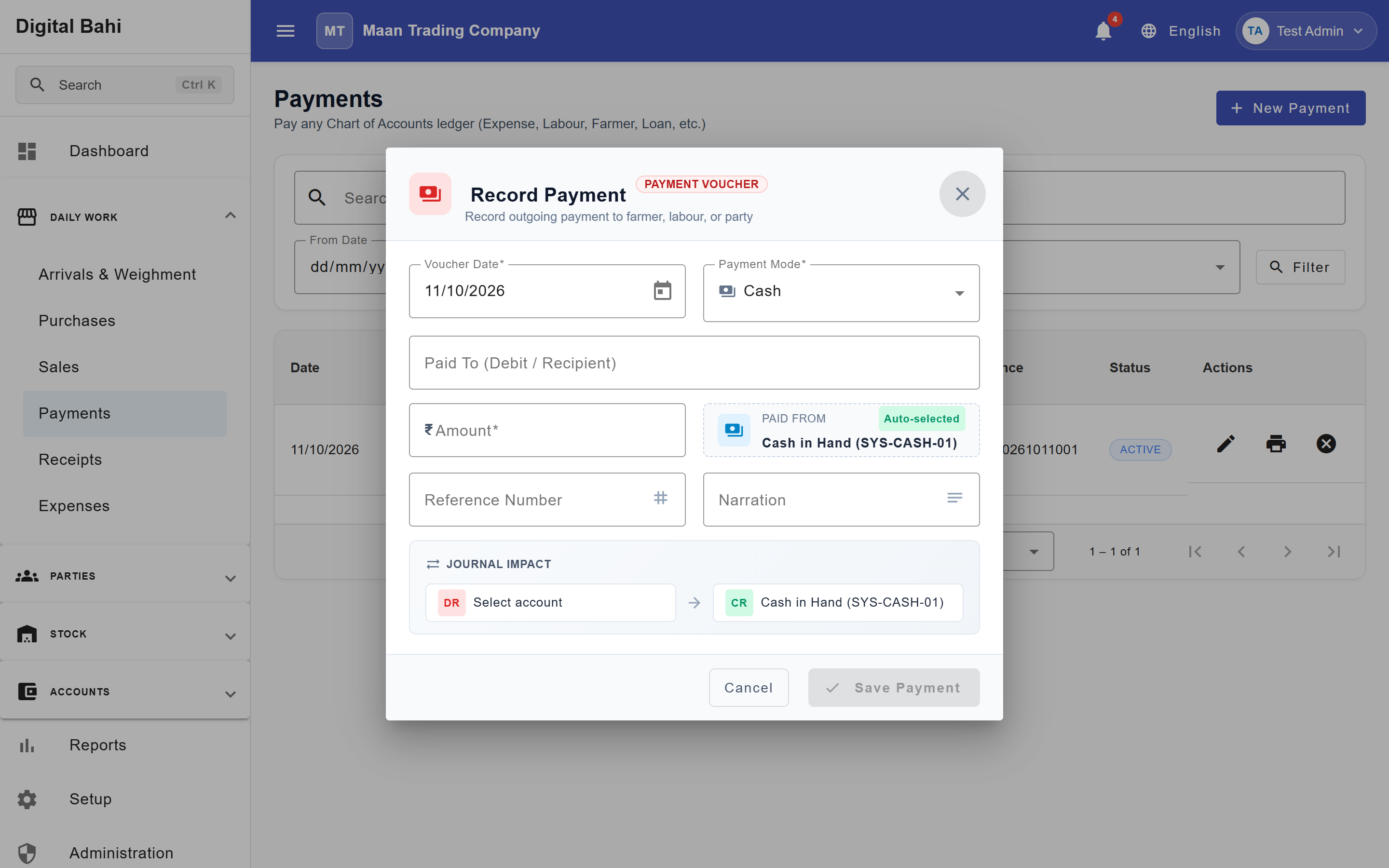
- Select the Voucher Date (must fall within an open, unlocked Financial Year and accounting period).
- Choose the Payment Mode:
- Cash: Automatically selects your business Cash in Hand (
SYS-CASH-01) account tile under Paid From. - Bank: Select the payment method (
Bank Transfer / NEFT / RTGS,UPI, orCheque), pick your active Bank Account, and enter the Reference Number. - Other: Select an eligible general ledger account for non-cash balance transfers.
- Cash: Automatically selects your business Cash in Hand (
- Select the Paid To (Debit / Recipient) account—for example, a Farmer, Party, or Liability account.
- Enter the Amount:
- Digital Bahi automatically formats the number using Indian Lakh/Crore commas (
1,00,000.00) and displays the live Amount in Words in English or Hindi directly below the input.
- Digital Bahi automatically formats the number using Indian Lakh/Crore commas (
- Review the live Journal Impact strip at the bottom of the dialog (showing the exact
DR → CRposting) and click Save Payment.
Fields explained
| Field | What it means | What to enter |
|---|---|---|
| Voucher Date | Date of the money disbursement. | Defaults to today; must be inside an active, unlocked Financial Year. |
| To Account (Debit) | Account receiving the payment. | Select the Farmer, Buyer/Party, or Liability account (Income/Expense accounts are excluded). |
| Amount | Monetary value disbursed. | Must be strictly greater than zero; displays live bilingual words beneath the field. |
| Mode | Funding channel (Cash, Bank, or Other). | Choose Cash for cash box payouts or Bank for electronic/cheque transfers. |
| From Account (Credit) | Source account funding the payment. | Auto-selected in Cash mode; requires selecting a Bank Account in Bank mode. |
| Reference Number | Bank UTR, Cheque Number, or transaction reference. | Recommended for all Bank mode payments to simplify Bank Reconciliation. |
| Narration / Remarks | Optional note explaining the payment. | Printed on the voucher and visible in the Party Ledger and Day Book. |
What happens after saving?
- Payable Reduced (or Advance Created): The selected Farmer, Party, or Liability account is debited, immediately updating their closing balance in Farmer 360, Party 360, and the Party Ledger.
- Cash / Bank Balance Updated: Your Cash in Hand or selected Bank Account is credited and reflected immediately in the Cash Book or Bank Book.
- Period Lock Protection: If the selected Voucher Date falls inside a closed Financial Year or locked accounting period, a Period Lock Banner alerts you immediately and prevents posting into the closed period.