Receipt
The Receipt module records incoming money received by your business—most commonly collections from a Buyer / Trader against sales, or refunds/advances returned by a party or farmer.
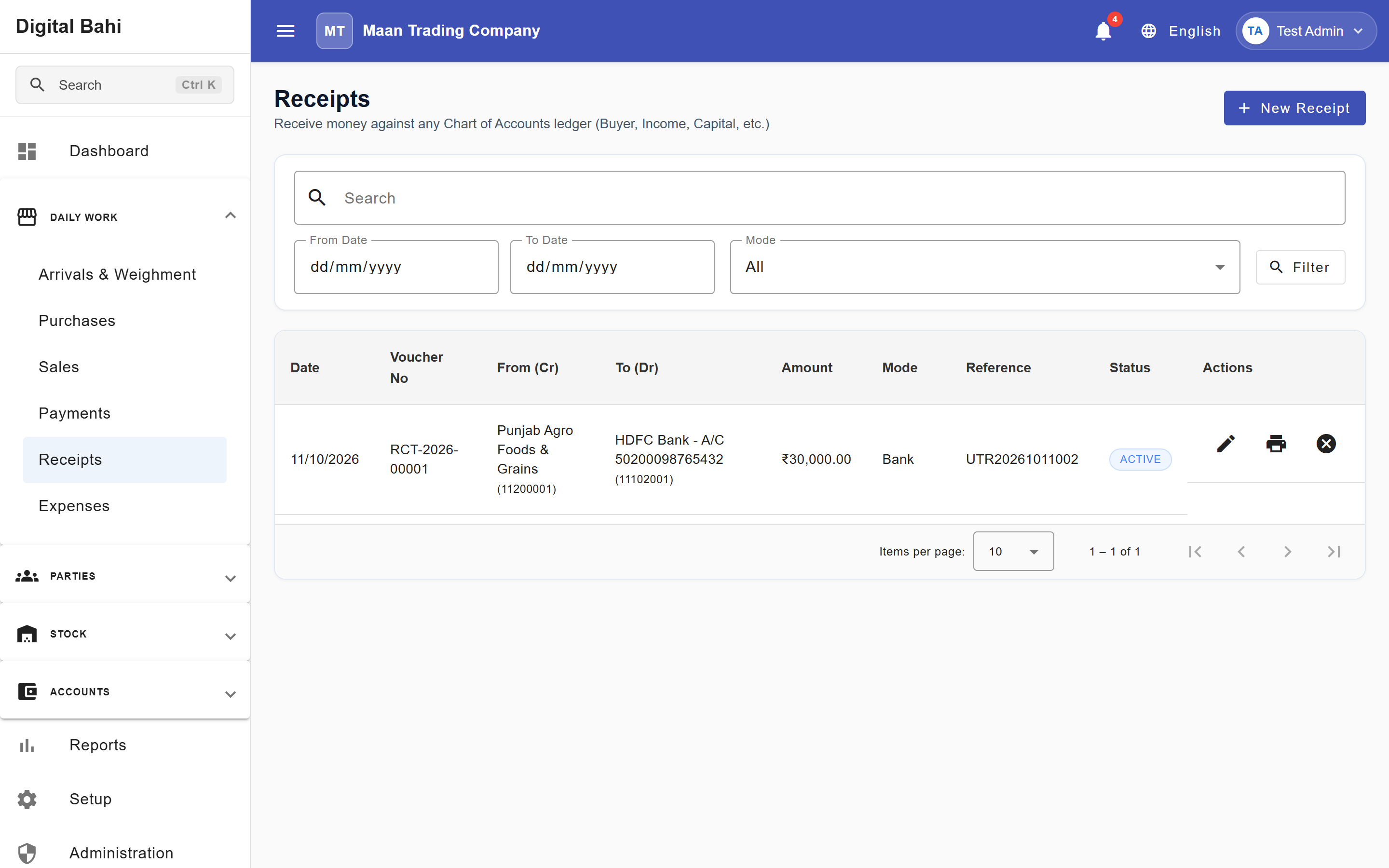
What is this?
A Receipt is a double-entry financial voucher that debits your receiving Cash, Bank, or adjustment account (Deposited Into) and credits the paying party or ledger account (Received From (Credit / Payer)). It does not change physical inventory quantities.
Important — Income & Expense Accounts: Income and Expense accounts are automatically excluded from Receipt vouchers. To record non-trading income adjustments, use a Journal Voucher.
When should I use it?
Use the Receipt screen whenever a buyer or party hands you cash, issues a cheque, or sends a UPI/NEFT/RTGS transfer to your business bank account (you can also record receipts directly from Party 360 or Settlement).
How to record a Receipt
- Open Daily Work > Receipts (or open the Payments & Receipts tab inside Party 360).
- Click + New Receipt to open the Record Receipt dialog.
- Select the Voucher Date.
- Choose the Receipt Mode:
- Cash: Automatically selects your Cash in Hand (
SYS-CASH-01) account tile under Deposited Into. - Bank: Select the instrument mode (
Bank Transfer,UPI, orCheque), choose the receiving Bank Account, and enter the Reference Number. - Other: Select an eligible ledger account for non-cash balance adjustments.
- Cash: Automatically selects your Cash in Hand (
- Select the Received From (Credit / Payer)—the Buyer, Farmer, or Balance Sheet account paying you.
- Enter the Amount:
- The field formats automatically in Indian Lakh/Crore notation (
1,00,000.00) and shows the live Amount in Words in English or Hindi.
- The field formats automatically in Indian Lakh/Crore notation (
- Check the live Journal Impact strip (
DR → CR) and click Save Receipt.
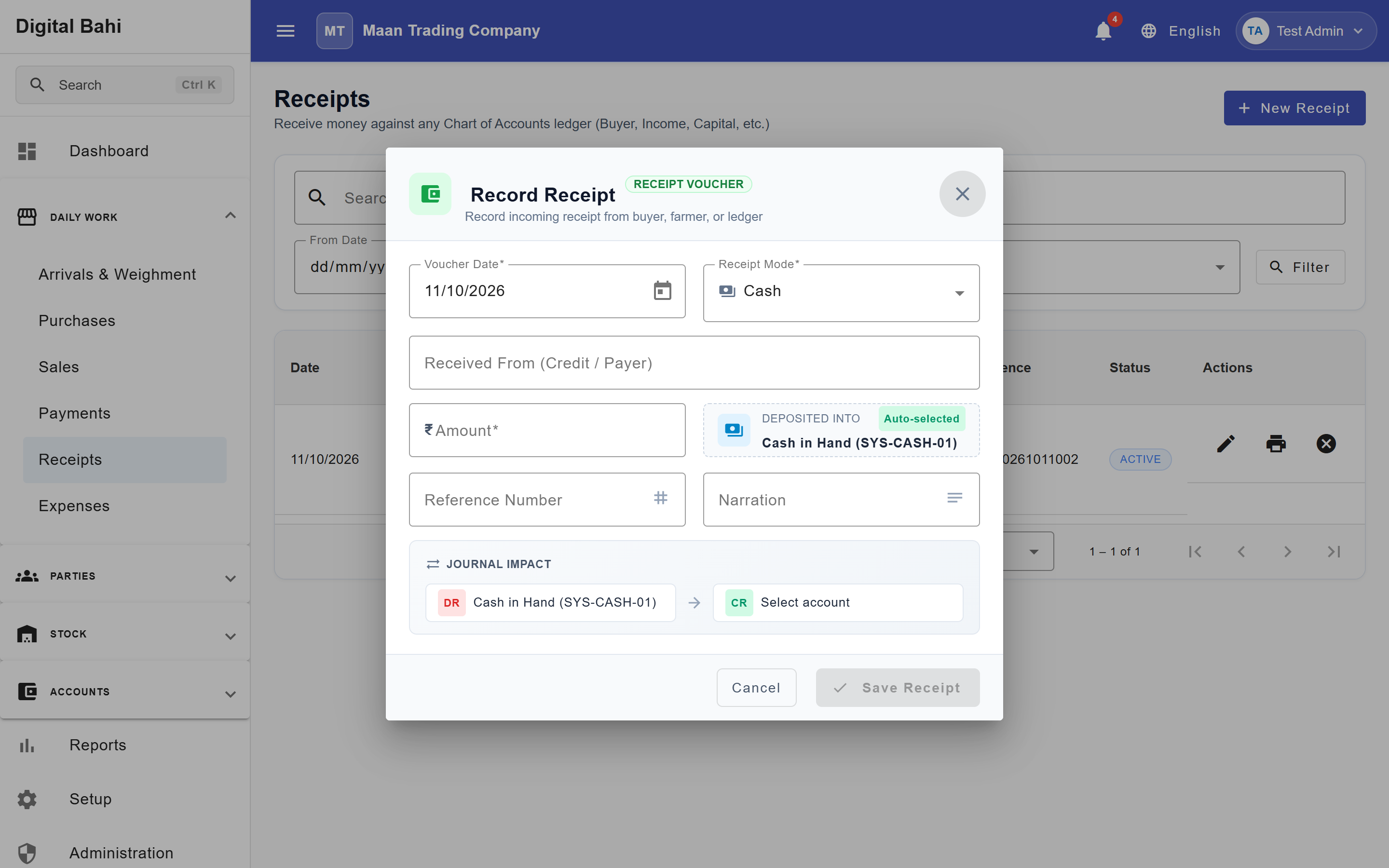
Fields explained
| Field | What it means | What to enter |
|---|---|---|
| Voucher Date | Date the money was received. | Must fall within an open, unlocked Financial Year. |
| From Account (Credit / Source) | Party or account providing the funds. | Select the Buyer, Farmer, or eligible Balance Sheet ledger. |
| Amount | Exact monetary value received. | Must be greater than zero; displays live bilingual words beneath the input. |
| Mode | Channel used (Cash, Bank, or Other). | Choose Cash for cash collections or Bank for bank/UPI/cheque receipts. |
| To Account (Debit / Receiving) | Destination account where funds arrived. | Auto-selected for Cash; select your Bank Account for Bank mode. |
| Reference Number | UTR, Cheque Number, or UPI reference. | Recommended for Bank Reconciliation. |
| Narration / Remarks | Optional description of the receipt. | Visible on the voucher, Day Book, and Party Ledger. |
What happens after saving?
- Receivable Reduced: Crediting a Buyer's account reduces their outstanding Receivable (
Dr) balance in Party 360 and the Party Ledger. - Cash / Bank Increased: Debiting your Cash or Bank account immediately increases your balance in the Cash Book or Bank Book.
- In-App Notification: Digital Bahi publishes a payment-received notification to the top-bar Notification Center.
Common mistakes
- Confusing Sale and Receipt: Saving a Sale generates the tax invoice and adds to the buyer's receivable balance; always record a Receipt (or Settlement) when the money actually arrives.
- Locked Accounting Period: If a Period Lock Banner appears on the dialog, the selected date falls inside a closed financial period; choose a valid open date or consult your accountant.