GST Returns Workspace (/reports/gst/returns)
Under Reports > GST Tax > GST Returns (/reports/gst/returns), Digital Bahi provides a centralized workspace for managing the monthly return preparation lifecycle for GSTR-1 (Outward Supplies) and GSTR-3B (Summary Return & Tax Payment) across all tax periods in the financial year.
Statutory Disclaimer: Digital Bahi calculates taxes, aggregates invoices, performs automated compliance cross-reconciliation, and prepares portal-compatible JSON and Excel files. Final return submission is performed by your accountant or Chartered Accountant on the government GST portal (gst.gov.in).
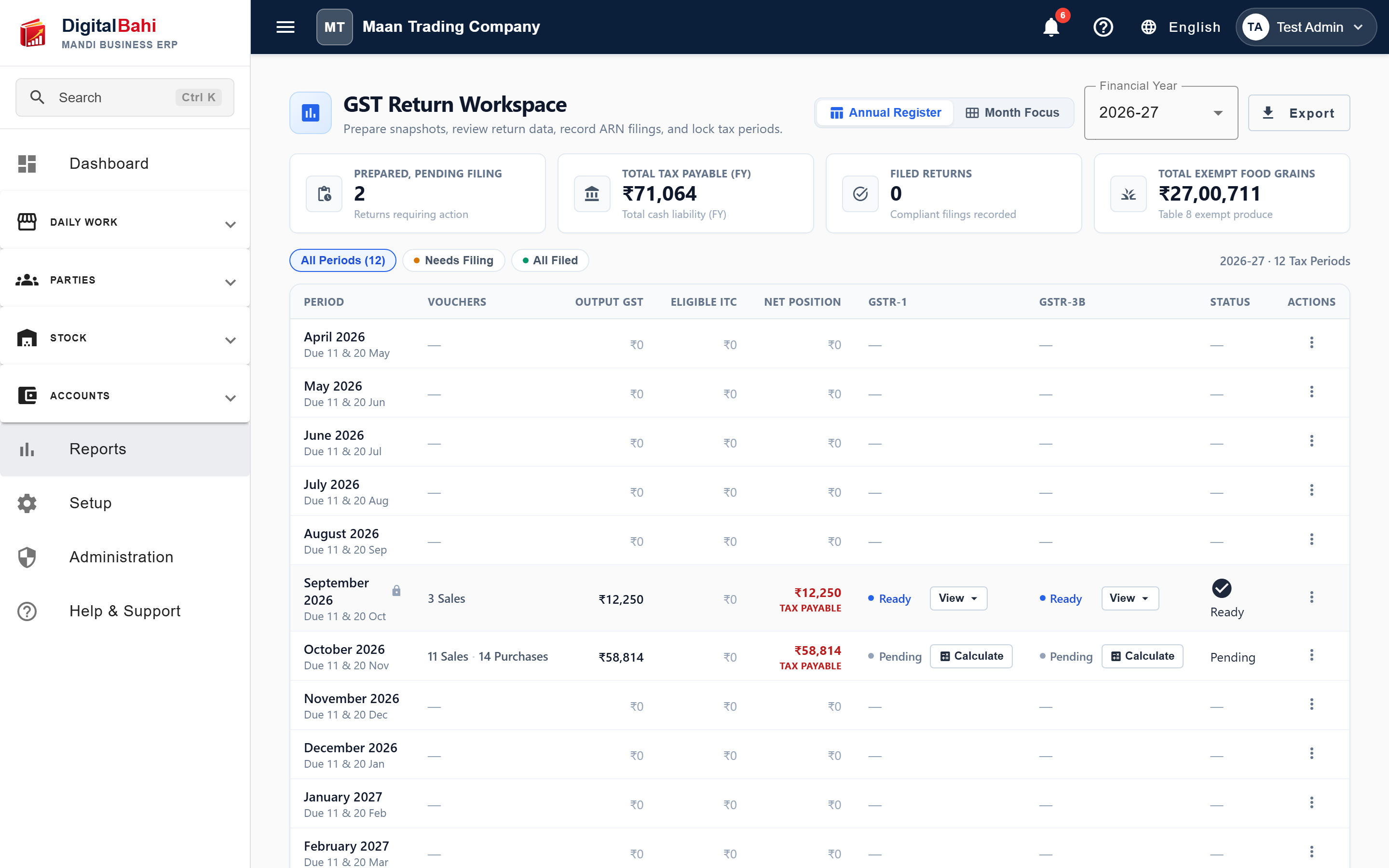
1. Workspace Header & Controls
At the top of the GST Return Workspace, you will find top-level controls for navigation, filtering, and export:
- View Mode Switcher:
- Annual Register (Table View): Default panoramic table showing all 12 tax periods of the financial year with due dates, vouchers count, tax figures, return statuses, and quick action menus.
- Month Focus View: Deep-dive card view focusing on a selected calendar month with side-by-side GSTR-1 and GSTR-3B preparation panels and compliance review accordions.
- Financial Year Selector: Switch between financial years (e.g.,
2026-27,2025-26) to review past filed records or track the current operating year. - Export Filing Summary: Generates a consolidated spreadsheet of all monthly tax periods, turnover, tax liability, ITC, and filing reference numbers for your CA.
2. Executive KPI Cards
The KPI banner displays four real-time compliance metrics aggregated across the selected Financial Year:
- Prepared, Pending Filing: The count of monthly returns where snapshots have been generated and validated, but the final filing reference (ARN) has not yet been recorded. Clicking this card filters the table to pending periods.
- Total Tax Payable (FY): The cumulative net cash tax liability across all months of the financial year (Output GST minus Eligible ITC).
- Filed Returns: The count of monthly returns officially marked as filed with government acknowledgment reference numbers (ARN).
- Total Exempt Food Grains: Total agricultural turnover of 0% tax food grains (Wheat, Mustard, Chana, Moong, etc.) reported under GSTR-1 Table 8 and GSTR-3B Table 3.1(c).
3. Annual Compliance Register (Table View)
The default table lists each monthly tax period chronologically from April to March:
| Column | Description |
|---|---|
| Period & Due Date | Shows the calendar month and statutory filing due dates (e.g., 11th of the following month for GSTR-1, and 20th for GSTR-3B). Displays a lock icon if the tax period has been finalized and closed. |
| Vouchers | Total count of posted Sales invoices and Purchase vouchers contributing to that tax period. |
| Output GST | Total statutory tax collected on outward taxable sales. |
| Eligible ITC | Total valid Input Tax Credit available from verified inward purchases. |
| Net Position | Displays net tax status: • Tax Payable (in amber/red): When Output GST exceeds Eligible ITC. • ITC Balance (in green): When Input Tax Credit exceeds Output GST, carrying forward to next month. |
| GSTR-1 Status & Actions | Outward supplies return lifecycle: • Draft / Pending: Click Calculate to compile voucher data into a return snapshot. • Ready / Prepared: Click View to open the action dropdown (View Month Details, Download JSON, Download Excel, Mark Filed). • Filed: Displays filing completion badge. |
| GSTR-3B Status & Actions | Summary return lifecycle: • Draft / Pending: Click Calculate to prepare summary tax position. • Ready / Prepared: Click View to inspect GSTR-3B calculations, export PDF/Excel, or record ARN. • Filed: Displays filing completion badge. |
| Status | Overall compliance health for the month (Ready, Pending, or Filed). |
| Actions (⋮) | Row action menu offering Mark Filed, Prepare Snapshot, Recalculate, View Details, and Finalize / Lock Period. |
4. Return Preparation Lifecycle
Each monthly return in Digital Bahi moves through three controlled stages:
[ 1. Draft ] ──( Calculate / Prepare )──> [ 2. Prepared (Ready) ] ──( Mark Filed with ARN )──> [ 3. Filed ]
- Draft (Pending): Transactions are being recorded in daily business. The return is not locked.
- Prepared (Ready): Clicking Calculate creates an immutable snapshot of all posted sales, purchases, and tax amounts for that calendar month.
- If any user adds, edits, or cancels a transaction in a prepared period, Digital Bahi automatically flags the snapshot as Stale, prompting you to recalculate before filing.
- Filed: Once your CA submits the return on the GST portal, click Mark Filed, enter the Acknowledgment Reference Number (ARN) and filing date. This permanently updates the filing registry.
5. Month Focus View
Switching the view toggle to Month Focus View provides a dedicated control panel for a single tax period:
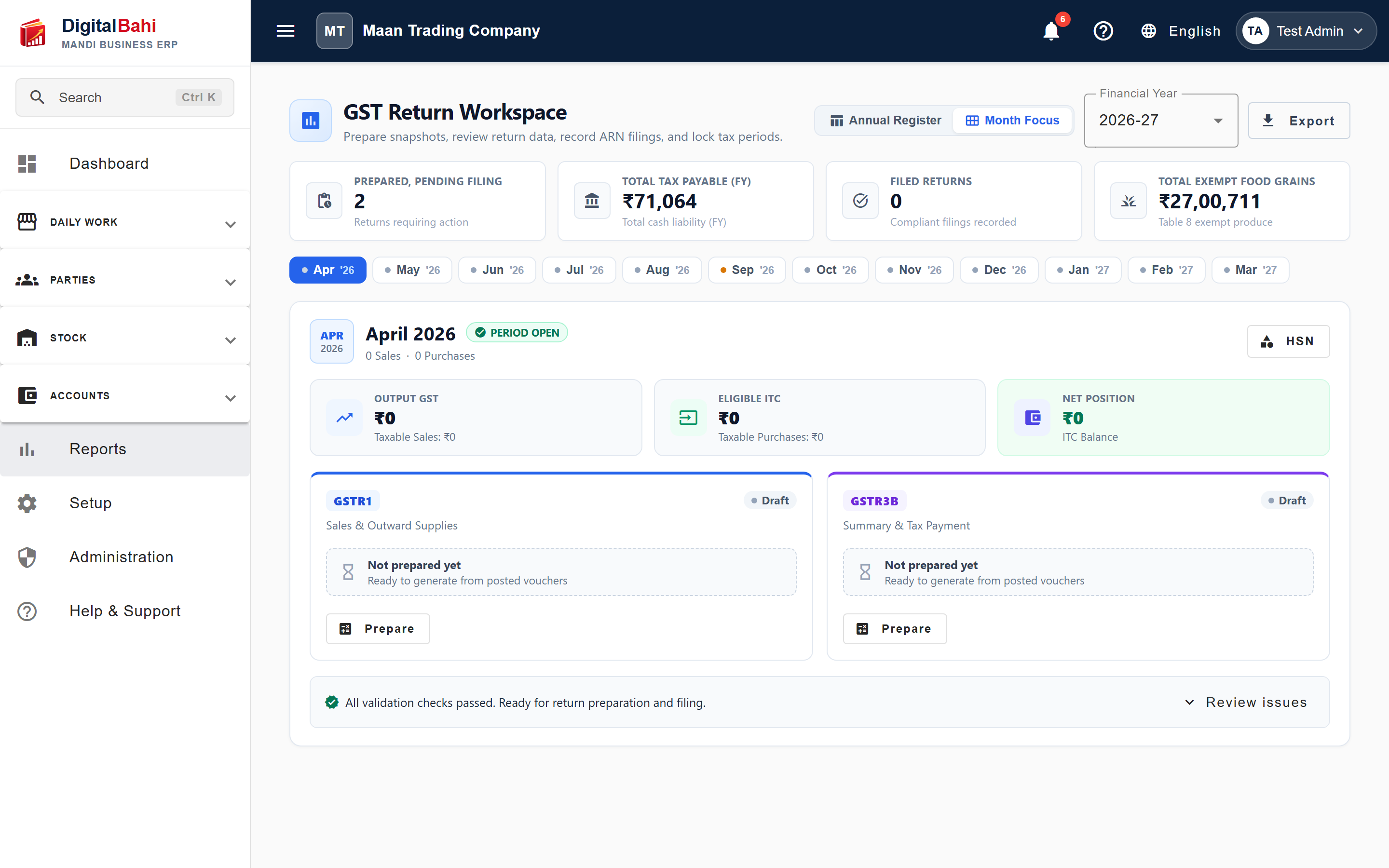
- Month Navigation Pills: Jump between months (
Apr '26,May '26, ...,Oct '26). - Period Status & HSN Lookup: Quick access to period status and commodity HSN rate verification.
- Side-by-Side Return Cards:
- GSTR-1 Card: Summary of taxable sales, exempt food grain sales, total output tax, and direct links to GSTR-1 Outward Supplies.
- GSTR-3B Card: Summary of outward supplies, inward ITC, indicative net liability, and direct links to GSTR-3B Preparation.
- Pre-Filing Compliance Accordion: Expandable diagnostic checklist verifying that all validation checks have passed.
6. Automated Pre-Filing Compliance Checks
Before marking any return as prepared or filed, Digital Bahi's validation engine automatically runs diagnostic checks:
- Missing Buyer / Supplier GSTIN: Identifies B2B invoices missing valid 15-character GST identification numbers.
- Missing Commodity HSN: Flags any trade line missing a mandatory HSN code.
- Voucher vs. GST Ledger Discrepancies: Checks that statutory CGST, SGST, and IGST line items on invoices exactly match general ledger postings.
- Cross-Reconciliation (GSTR-1 vs. GSTR-3B vs. Ledger): Verifies that outward tax in GSTR-1 equals GSTR-3B, and checks ITC claims against your GSTR-2B Reconciliation.
- Blocking Protection: If blocking compliance errors are detected, period finalization is prevented until the issue is resolved.
7. How to File and Close a Tax Period
- Navigate to Reports > GST Tax > GST Returns (
/reports/gst/returns). - Select your Financial Year and locate the due month in the table.
- If the month displays Pending, click Calculate under GSTR-1 and GSTR-3B to compile snapshots.
- Review the generated figures. Use View > Download JSON for GSTR-1 to export the file for the government portal, and View > Download Excel for GSTR-3B.
- Work with your CA to submit the filing on gst.gov.in.
- Return to Digital Bahi, click Mark Filed, enter the ARN (Acknowledgment Reference Number), and save.
- Authorized users can then Finalize / Lock the period under GST Liability & Period Locking to prevent accidental backdated changes.